

Let's be honest—managing a generic support@ or info@ email address often feels like trying to drink from a firehose. For a growing e-commerce team, that initial chaos quickly snowballs into real problems. We're talking missed customer emails, two agents replying to the same person, and a complete black hole when it comes to accountability. A standard shared inbox Gmail setup just can't keep up when your business really starts to take off.
The Hidden Costs of a Disorganized Support Inbox
I’ve seen this happen a hundred times. A Shopify store is humming along, but behind the scenes, the support inbox is a mess. A customer's urgent question about shipping gets buried under a flood of new messages. At the same time, two different support agents, totally unaware of each other's work, both process the same refund request.
This kind of mix-up doesn't just confuse the customer; it literally costs you money and chips away at the trust you've worked so hard to build. These small, daily frustrations are just symptoms of a much bigger operational breakdown.
When your team is stuck forwarding emails or, even worse, sharing a single password, you lose all visibility. There’s no clear way to know who’s handling what, which is how critical tasks inevitably fall through the cracks. It's a reactive, stressful way to work, and your customers feel the pain just as much as your team does.
The True Price of Inefficiency
The consequences of a messy inbox go way beyond simple frustration. They hit your bottom line and your brand's reputation in ways that can be tough to bounce back from. A disorganized system is a direct line to:
- Slower Response Times: Customers are left waiting for answers, and in e-commerce, that often means they'll just abandon their cart and buy from a competitor. Research shows that 66% of consumers expect a response to a support query on the very same day.
- Increased Agent Burnout: Your team ends up spending more time digging through threads and trying to figure out who said what than actually helping people. That's a recipe for low morale and high turnover.
- Lost Revenue Opportunities: A potential customer's pre-sale question goes unanswered. A loyal customer's problem is handled poorly. Both scenarios lead to lost sales and churn.
The goal is to build a system where every single email has a clear owner and a defined path to resolution. Without that structure, you're not really managing an inbox—you're just reacting to an endless stream of digital noise.
Getting that kind of clarity is absolutely essential for scaling your support. By setting up a more structured workflow, you can shift from constantly putting out fires to proactively taking care of your customers.
If your team is drowning, looking into frameworks like the Inbox Zero method can be a great first step toward regaining control. A well-organized shared inbox Gmail isn't just a "nice-to-have"; it's a critical foundation for sustainable growth.
Choosing Your Native Gmail Shared Inbox Solution
Before you start looking at fancy third-party software, it’s worth knowing that Google Workspace has a few built-in ways to create a shared inbox in Gmail. Each one has its own quirks, advantages, and limitations. The "best" choice really comes down to your e-commerce team's size, how many emails you get, and how comfortable you are with the technical side of things.
Getting a handle on these native options is your first step toward taming that chaotic support queue. Let's walk through the four main approaches you can set up directly within the Google ecosystem.
Without a solid system, your inbox quickly becomes a black hole where customer issues get lost, two people answer the same question, and nobody knows who's responsible for what.
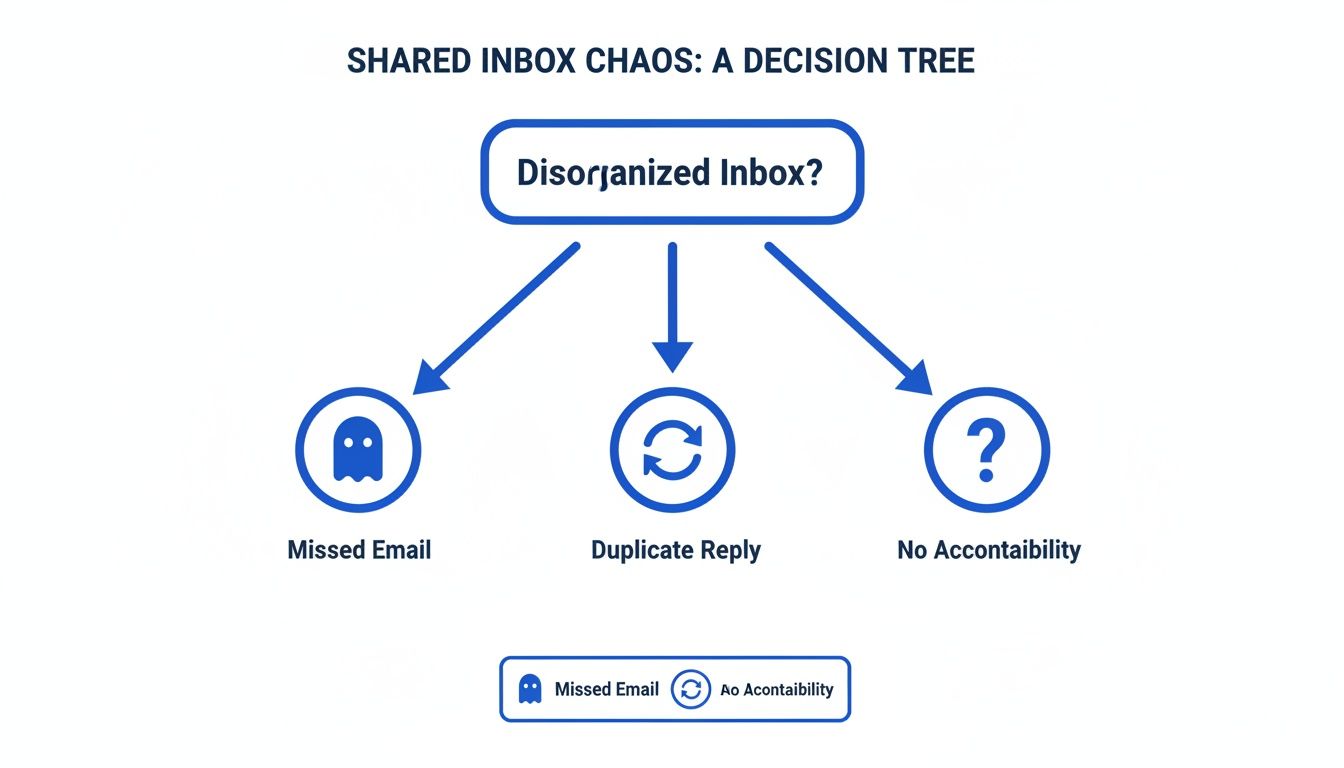
These are the exact problems that tank customer satisfaction and grind your operations to a halt, which is why finding a structured approach is so critical.
To help you decide at a glance, here’s a quick comparison of the native methods we're about to explore.
Comparing Native Gmail Shared Inbox Methods
| Method | Best For | Key Advantage | Major Drawback |
|---|---|---|---|
| Shared Login | 1-2 person teams with very low email volume. | Dead simple setup. No technical skill is needed. | Massive security risks and zero accountability. |
| Gmail Delegation | A founder and their assistant, or a single support manager. | Secure access without sharing passwords. | Not built for team collaboration; lacks assignments. |
| Google Groups | Small to mid-sized teams needing basic ticketing features. | True collaboration: assignments, statuses, and tags. | Clunky interface separate from Gmail; admin setup. |
| Labels & Filters | Small, disciplined teams on a tight budget. | Highly customizable and lives within the standard Gmail inbox. | Entirely manual, prone to error, and doesn't scale. |
This table should give you a starting point, but the devil is in the details. Let's dive deeper into how each of these actually works in practice.
The Shared Login Approach
This is the path of least resistance. You just create a generic email account—think support@yourstore.com—and hand out the password to everyone on the team. It's fast, free, and requires absolutely zero technical fiddling. Everyone logs in, sees the same messages, and replies from the same address.
But here’s the catch: this method is a security nightmare and an accountability black hole. You have no idea who actually sent that curt reply to an unhappy customer. When someone leaves the company, you have to go through the hassle of changing the password and updating everyone. It’s a system that falls apart with more than two people.
Gmail Delegation for Simple Access
A much safer and more professional option is Gmail Delegation. This feature lets you grant another Google Workspace user direct access to an inbox without ever sharing the password. The "delegate" can then read, send, and even delete messages right from their own account, but on your behalf.
This is the perfect setup for, say, an executive assistant who manages a founder's inbox, or for a single support lead who needs to oversee the main support@yourstore.com address. The big win here is security and control—you can grant and revoke access with a click.
Delegation isn't a team solution, though. It’s designed for a one-to-one or one-to-few dynamic. It’s missing the tools that a real support team needs, like the ability to assign an email to a specific person or leave an internal note for context.
Google Groups for a Collaborative Inbox
For teams that need more organization, Google Groups for Business offers a feature called a "Collaborative Inbox." This is as close as Google gets to a built-in help desk and is the most powerful native option for a true shared inbox in Gmail. When you set up a group like support@yourstore.com this way, it essentially becomes a lightweight ticketing system.
Here’s what you can do with a Collaborative Inbox:
- Assign conversations to a specific team member, creating clear ownership.
- Mark emails with statuses like "Resolved" or "Duplicate" to keep track of everything.
- Filter and categorize inquiries with tags (e.g., "Returns," "Shipping," "Product Question").
This is hands-down the best way to get help desk functionality without leaving the Google ecosystem. It provides a central place for managers to see exactly who is working on what, which is huge for preventing duplicate replies and making sure nothing slips through the cracks.
The downside? It can feel a little clunky. The interface is completely separate from the familiar Gmail one, which can be a tough adjustment for some teams. It also requires a Google Workspace admin to configure it properly. And while it's good, its features don't quite stack up against dedicated support platforms. When you're weighing your options, comparing a feature list like the one for Copycat247 Features can really clarify whether a native Gmail tool is enough or if it's time for something more specialized.
DIY with Labels and Filters
Your final option is to build your own system using a clever combination of Gmail’s labels and filters. The workflow usually involves having a central account (support@yourstore.com) that automatically forwards every incoming email to each team member’s personal inbox.
From there, team members use a unique label, like "Handled-by-Jane," to flag any conversation they've taken care of. By setting up the right filters, everyone else on the team can then see which emails are still open and which have been claimed. For a small, disciplined team on a shoestring budget, it’s a smart workaround.
The biggest issue is that it's entirely manual. The system's success depends on everyone following the process perfectly, every single time. As your email volume grows, it becomes a messy, complicated web of rules that’s incredibly difficult to manage. There's no central dashboard, and figuring out the history of a conversation can be a real headache. It's a decent first step, but it’s not a long-term solution for a growing e-commerce brand.
Of all the built-in ways to wrangle a shared inbox in Google Workspace, the Collaborative Inbox feature in Google Groups is usually the strongest contender for a growing e-commerce team. It’s the closest you’ll get to a real help desk without ever leaving the Google ecosystem, turning a standard support@yourstore.com address into a command center for customer service.
Making this switch is really a nod to the sheer volume of emails we all deal with. Think about it: the average Gmail account is sitting on over 5,700 emails. Now, imagine you’re an e-commerce manager staring down thousands of customer emails every single day. That’s why a more organized system isn't just nice to have—it's essential.
Setting this up isn’t just about flipping a few switches; it's about fundamentally changing your workflow. The whole point is to create one central place where your team can see everything, take ownership of issues, and work together without stepping on each other's toes.
Getting the Group Set Up
First things first, you'll need to head over to Google Groups and create a new group. The single most important decision you'll make here is the "Group type." You absolutely have to choose Collaborative Inbox. This is what unlocks all the good stuff, like assigning conversations and tracking resolutions.
As you go through the setup, you'll pick the group's email address (like support@yourstore.com) and dial in some critical permissions.
Here’s what I recommend:
- Who can post: Set this to “Anyone on the web.” This is non-negotiable if you want to receive emails from your customers.
- Who can join the group: I’d lock this down to “Only invited users” to keep it to just your internal team.
- Who can view conversations: Keep this restricted to “Group members.” This protects your customers' sensitive information.
Getting these settings right from the get-go is your first line of defense for a secure and functional inbox.
Putting the Collaborative Features to Work
Once your group is live, the real fun begins. The magic of the Collaborative Inbox is that it acts a lot like a basic ticketing system. This is where you can start assigning conversations to specific people on your team, which immediately clears up any "who's handling this?" confusion.
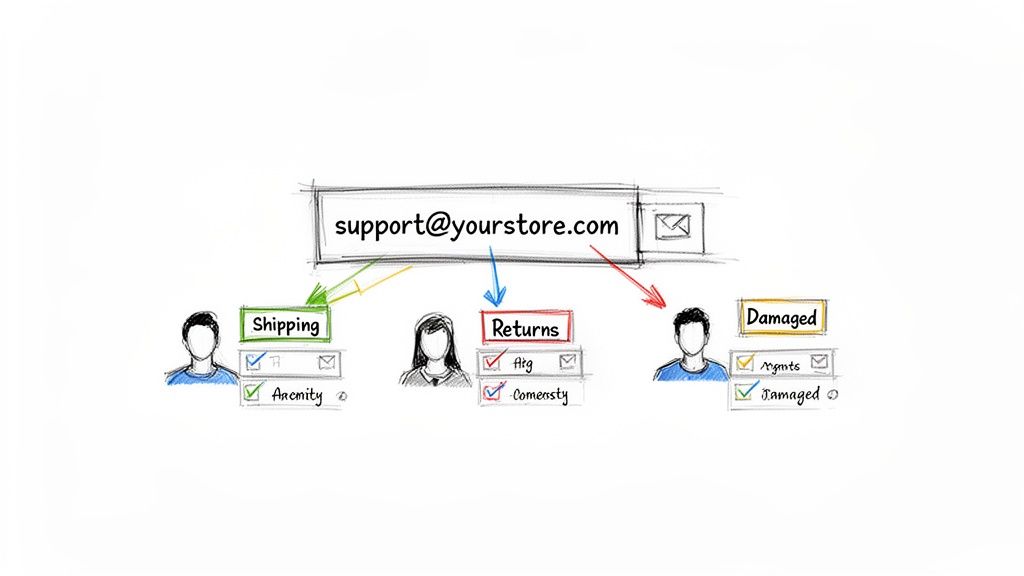
As you can see, you can direct different types of customer issues to the right folks, which is a huge time-saver and keeps things from falling through the cracks.
You’ll also want to get serious about using labels (or tags) to categorize every message. For an e-commerce store, this is a game-changer. You could create labels for things like:
ReturnsDamaged ItemsShipping QuestionURGENT
This simple labeling system is your key to effective triage. A manager can instantly filter for all "URGENT" tickets that came in overnight or pull up a report of all "Returns" from the past week. That’s a level of visibility you just don’t get with a standard Gmail account.
When your team consistently uses assignments and labels, you build a transparent and organized machine. Everyone knows what they’re responsible for, and managers can see the status of any customer issue at a glance. Your once-chaotic inbox starts looking a lot more like a well-oiled support operation.
Fine-Tuning Your E-commerce Support Workflows
Getting the tech set up for your shared inbox is really just step one. The real game-changer is building smart, repeatable workflows that let your e-commerce support team operate like a well-oiled machine. This is how you move from just having a shared inbox to actually mastering it for daily success.
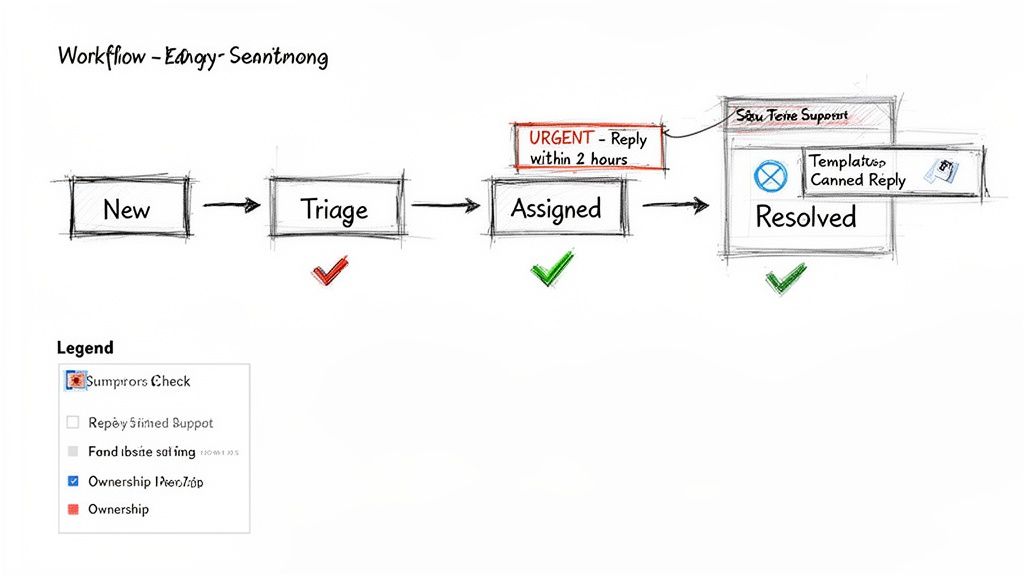
The ultimate goal is simple: create a system where every single email has a clear owner and a predictable path to getting resolved. Without that structure, even the best-intentioned shared inbox will quickly turn into a chaotic mess where things get missed.
Triage and Ownership Strategies
Right out of the gate, you need a crystal-clear process for triaging new emails. This is all about quickly sizing up a message's urgency and getting it to the right person before it gets lost in the shuffle. A simple and incredibly effective way to do this is with a smart labeling system.
Forget generic labels. You need to create specific, action-oriented labels that instantly show priority and ownership. Think along these lines:
- URGENT - Reply within 2 hours: Perfect for those heart-stopping issues like payment failures or last-minute order cancellations.
- Shipping - John: This immediately routes all delivery questions straight to your logistics guru, John. No more guessing games.
- Returns - Awaiting Action: This tag flags all the return requests that are teed up and ready for processing.
This approach instantly clarifies who is responsible for what, killing the classic "I thought you were handling that" problem. Anyone can glance at the inbox and know exactly what needs their attention versus what a colleague has already grabbed.
A well-defined triage process does more than just organize emails; it sets clear expectations for your team and your customers. When everyone knows the rules of engagement, response times naturally improve.
Defining Your Service Level Agreements
A Service Level Agreement (SLA) is basically your promise to customers about how quickly they can expect a response. Turns out, your Gmail labels are a fantastic way to keep your team accountable to these SLAs within your shared inbox Gmail setup.
For example, you could set up a filter that automatically slaps an "SLA-24hr" label on every new message that comes in. Now, your team has a clear, visual goal each day: clear out that folder. It transforms a vague objective into a measurable, daily task.
Speeding Up Replies with Templates
Let's be honest, a huge chunk of e-commerce support is answering the same questions over and over. "Where's my order?" and "How do I make a return?" probably sound familiar. This is where Gmail's canned responses, or templates, become your secret weapon.
Part of an efficient workflow also means looking at things like setting up automatic email forwarding rules to make sure specific types of messages always land in the right place without manual intervention.
Take the time to write out polished, friendly, and personalized templates for your top 5-10 most common questions. Your agents can then pop them into a reply with a single click, add a touch of personalization, and fire it off. This simple tactic can slash response times and give your team more bandwidth for the truly tricky customer problems. For more advanced ideas, check out our guide on how to automate customer service.
Knowing When to Move Beyond a Gmail Inbox
Getting started with a Google Groups Collaborative Inbox or another Gmail-based solution is a smart first move. It brings a much-needed sense of order to the chaos of early-stage customer support. But as your store scales, you’ll inevitably start to feel the growing pains.
Think of this as a good problem to have. It's a clear sign your business is succeeding and that the scrappy workarounds that got you off the ground are no longer enough. Suddenly, managing your shared inbox Gmail setup feels less like helping customers and more like a full-time job in data entry.
Spotting the Growth Pains
The signs that you're outgrowing your inbox are usually subtle at first, but they quickly become major headaches. You start seeing "agent collision," where two people accidentally answer the same email, leading to wasted time and a confusing experience for your customer. It’s a classic symptom.
Then there’s the analytics wall. You're flying blind without any real data to answer crucial questions:
- How long does it really take us to first reply to a customer?
- What’s a typical daily ticket count for each team member?
- Are we actually hitting our support goals and SLAs?
To find these answers, you're stuck manually tracking everything in a spreadsheet. It’s a time-consuming process that’s just begging for errors.
When your team spends more time managing the inbox than actually solving customer problems, you’ve hit the limit. Your tools should make your job easier, not be the job.
The Integration and Automation Ceiling
Another huge roadblock is the disconnect between your inbox and your e-commerce platform. A standard Gmail setup has no idea about your Shopify orders, a customer's purchase history, or the latest shipping updates. This forces your agents into a constant cycle of tab-switching between their email and your store's back end, which slows everything down and makes for clunky conversations.
Gmail is undeniably powerful, with 1.8 billion active users worldwide, and it’s a foundational tool for the 90% of U.S. startups that depend on it. But its shared inbox features just weren't built for the specific, high-volume needs of a growing e-commerce brand. You can learn more about global email usage on sqmagazine.co.uk.
Eventually, you hit a tipping point where manually assigning emails and applying labels just can't keep pace with the flood of new messages. You need a system built for support—one with smart automation, clear analytics, and direct e-commerce integrations. This is the natural next step in your support journey, moving from a simple shared inbox to a real support platform. To see what that looks like, check out our guide on what a ticketing system is and how it helps.
Got Questions? We've Got Answers
You're probably wondering about the day-to-day realities of managing a shared inbox inside Gmail. It's a smart move to think through the details. Here are some straightforward answers to the questions we hear most often from e-commerce teams.
How Can I See How My Team is Performing?
This is a big one. The short answer is that Gmail doesn't have built-in performance analytics. You can't easily see who's answering what, how quickly they're responding, or how many emails it takes to solve a customer's problem.
Sure, you could try to rig up a manual system with a bunch of labels and a complex spreadsheet, but let's be honest—that's a huge time sink and prone to errors. This lack of visibility is often the first major growing pain that pushes successful stores toward a real helpdesk platform.
What Stops Two People From Replying to the Same Email?
Ah, the classic "agent collision" problem. It’s a recipe for confusion and looks unprofessional to your customers. If you're using a Google Groups Collaborative Inbox, you can get around this by having agents "assign" conversations to themselves. This puts their name on it and signals to everyone else, "I've got this."
The catch? This system is entirely manual and relies on your team being disciplined enough to use it every single time. It's a workaround, not a solution. Purpose-built tools solve this instantly with features that show you in real-time if someone else is already viewing or typing a reply.
Is There a Limit to How Many People Can Use the Inbox?
The limit really depends on the path you take.
- Gmail Delegation: This method is best for small, tight-knit teams. You can only add up to 25 delegates to a single account.
- Google Groups: Technically, you can add hundreds or even thousands of members to a Collaborative Inbox.
But just because you can add that many people doesn't mean you should. A Google Group with a ton of users quickly becomes chaotic and slow. It just wasn't designed for managing a large support team effectively.
Feeling the limitations of a basic Gmail setup? MAILO AI is built for e-commerce, integrating with Shopify to give you the analytics, automation, and collision-free collaboration you need. See how it works with a free trial.