

Connecting Slack and Zendesk is all about bridging the gap between your team's real-time conversations and your official customer support records. It creates a single, powerful hub where your agents can see ticket notifications, create new tickets, and add internal notes right from a Slack channel.
The biggest win? No more flipping back and forth between apps all day long.
Why Integrate Slack and Zendesk for Your E-Commerce Store
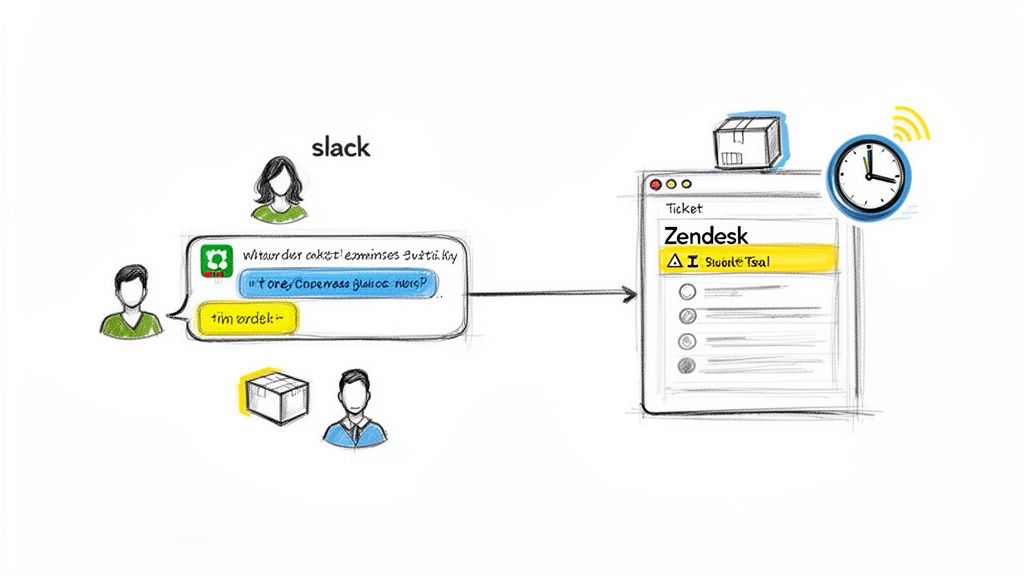
Picture this: your support team is sorting out an urgent shipping problem for a VIP customer, and they do it all without ever leaving Slack. That's the real magic of a Slack and Zendesk integration. It pulls customer support out of its silo and makes it a fast-moving, collaborative part of your e-commerce brand.
By getting all your ticket alerts and team chats in one place, you kill the friction that comes with context switching.
This isn't just a nice-to-have for convenience; it’s a massive boost to your speed and efficiency. In fact, support teams that nail this integration have been known to slash their response times by as much as 60%. For any growing Shopify store, that kind of speed is gold—it leads directly to happier customers who stick around.
Streamline Your Support Communications
The main idea is to create one source of truth for all things support. No more agents trying to piece together a story from Zendesk tickets, internal emails, and a dozen different Slack DMs. Everything just flows into one organized, searchable space.
At the end of the day, all effective help desk ticketing systems rely on organization, and this integration puts a powerful conversational layer right on top of Zendesk.
Once you’re set up, you’ll see a few immediate benefits:
-
Faster Triage: You can automatically pipe new, high-priority tickets into a dedicated Slack channel like
#tier-2-supportor#urgent-orders. This gets the right eyes on the problem instantly. - Easier Collaboration: An agent can pull a warehouse manager into a Slack thread to check stock levels, and that whole conversation gets logged as an internal note in the Zendesk ticket. It’s seamless.
- Less Agent Burnout: Cutting down on tab-hopping reduces mental fatigue. It lets your team focus their energy on actually solving customer problems, not navigating software.
Boost Team Efficiency and Visibility
A properly configured Slack and Zendesk integration doesn't just help the support team; it gives the whole company a window into what’s happening with customers.
Your marketing team can pop into a support channel to see recurring feedback on a new product. Your logistics team can spot real-time shipping delays as tickets come in. This kind of cross-functional visibility helps you fix the root cause of problems, not just the symptoms.
By syncing ticket updates and internal notes between platforms, you ensure that Zendesk remains your system of record while Slack becomes your center for rapid action and collaboration.
This setup goes way beyond simple notifications. It empowers your team to act directly from Slack—assigning a ticket, changing its status, or adding a private note for a colleague. For many brands, a solid integration becomes the backbone of their entire support strategy.
As you build out your tech stack, it’s worth understanding all the help desk services available and how they can fit into a bigger automation picture. For any e-commerce store looking to scale, making support operations more efficient isn't just a goal—it's a must.
Choosing Your Integration Method
Connecting Slack and Zendesk isn't a one-size-fits-all deal. The right approach really comes down to what your support team needs, your technical comfort level, and of course, your budget. For most e-commerce brands, the choice is between Zendesk's own native integration and a more powerful third-party automation tool.
Figuring out the difference is crucial. You want to build a system that actually helps your team, not just create more notification noise. Let's walk through both options so you can see which one makes the most sense for your Shopify store.
The Zendesk Native Integration
If you're just getting started, the official Slack and Zendesk integration is the place to begin. It's built and maintained by Zendesk, which means it’s reliable and works right out of the box. Think of it as the bedrock for your support comms.
The setup is fast—you can have the most important features up and running in minutes. This is the perfect solution for teams trying to cut down on the constant back-and-forth between apps.
Here’s what you can do with the native app:
-
Get Automatic Ticket Notifications: You can set up rules in Zendesk to automatically ping specific Slack channels. A new ticket tagged "urgent-shipping," for example, can pop up instantly in your
#fulfillment-alertschannel. -
Create Tickets Right from Slack: A team member can use a simple slash command like
/zendesk createto turn a Slack conversation into an official Zendesk ticket. No one has to leave the chat. - Add Internal Notes from Slack: Keep all the collaboration in one place. Your team can add internal notes to a Zendesk ticket directly from a Slack thread, so the context is never lost.
The native integration is all about core ticketing. It’s brilliant at pulling Zendesk’s most essential functions into your Slack workspace, making it a fantastic starting point for any e-commerce support team.
Third-Party Automation Platforms
The native app is great, but sometimes your needs are a bit more complicated. What if you need to link Zendesk not just to Slack, but also to Asana, your CRM, and a Google Sheet for reporting? This is exactly where third-party tools like Zapier or Make come into their own.
These platforms are like a switchboard for all your apps. They let you build multi-step automations (often called "Zaps" or "Scenarios") that the native integration just can't handle. You could, for instance, create a workflow where a new high-priority Zendesk ticket simultaneously pings a Slack channel, creates a task in Asana for the engineering team, and logs the ticket details in a spreadsheet.
These tools are a game-changer for teams that crave deep customization and want to automate processes across their entire tech stack. Yes, they usually come with a subscription and a bit more setup, but the payoff in efficiency is huge. In fact, some studies show that well-integrated support tools can slash response times by up to 60%—and platforms like these are built to make that happen.
Comparing Zendesk Native vs Third-Party Integrations
Here's a quick comparison to help you decide which integration method best suits your e-commerce support team's needs, from basic notifications to complex, multi-app workflows.
| Feature | Zendesk Native Integration | Third-Party Tools (e.g., Zapier) |
|---|---|---|
| Setup Complexity | Low - A few clicks and you're authorized. | Medium - You'll need to build custom workflows. |
| Cost | Free (included with your Zendesk plan). | Subscription-based, though most have a free tier. |
| Core Functionality | Ticket notifications, creation, and internal notes. | Nearly unlimited with multi-step automations. |
| Best For | Teams who need a simple, reliable connection. | Teams looking to connect multiple apps and build complex, custom workflows. |
At the end of the day, the best Slack and Zendesk integration is the one that fits how you work right now but can also grow with you. I've seen many teams start with the native app for its simplicity and then graduate to a tool like Zapier once their operations get more complex.
How to Set Up the Native Slack and Zendesk Integration
Getting the native Slack and Zendesk integration running is surprisingly simple. It’s built for managers and team leads, so you won’t need to pull in a developer just to get the basic benefits rolling. This first setup is the foundation—it's what will get ticket notifications flowing and allow your team to create tickets right from their conversations.
The whole process boils down to authorizing the app on both platforms and then tweaking your notification rules in Zendesk. With just a few clicks, you can start pushing important ticket updates into the Slack channels where your team already lives. This kind of immediate visibility is huge for response times and getting different departments on the same page.
Authorizing the Apps and Making the Connection
First things first, you need to get Zendesk and Slack to shake hands. Think of it as giving both platforms official permission to talk to one another. You’ll need admin access on both accounts to make this happen without any snags.
You'll want to start in the Zendesk Marketplace and search for the official Slack app. Once you find it, the installation wizard will walk you through the process, asking you to log in and grant the right permissions along the way.
Here’s a quick rundown of what that looks like:
- Install the App in Zendesk: Head to the Zendesk Marketplace, find the "Slack for Zendesk Support" app, and hit install.
- Configure the Integration: The app will ask for your Slack workspace URL. This is how Zendesk knows where to send its messages.
- Grant Permissions in Slack: You’ll get bounced over to Slack to authorize the connection. This lets Zendesk post messages, create channels, and see user info.
- Finalize the Connection: Once you approve it in Slack, you'll be sent back to Zendesk to wrap things up. It’s a clean, secure loop that links the two systems.
This flow diagram shows how the native app stacks up against other integration methods.
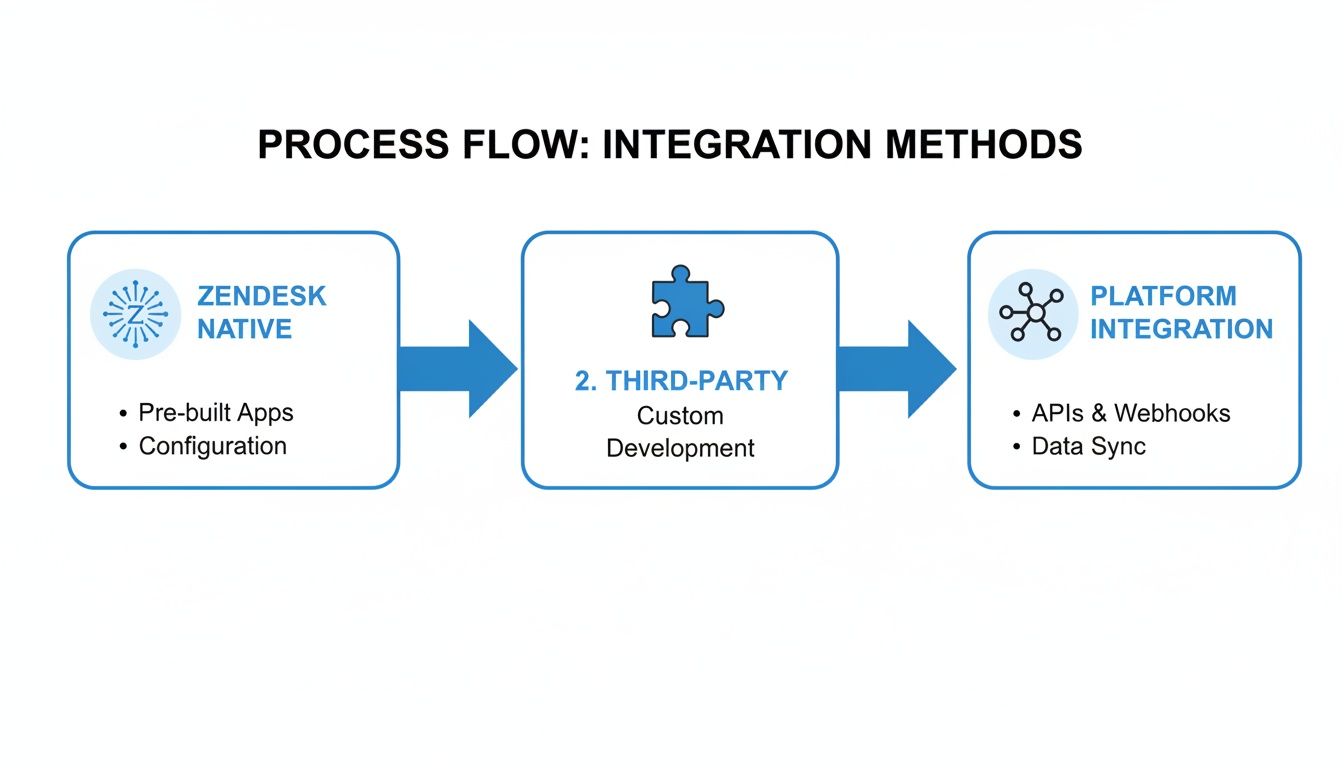 As you can see, the native path is the most direct route for core ticketing functions. Third-party tools come into play when you need more complex automations involving several different apps.
Configuring Your First Notification Channel
With the apps connected, the real work begins: setting up smart notifications. The last thing you want is every single ticket update spamming a general channel—that’s a fast track to alert fatigue. The key is to create dedicated channels for specific needs.
A great starting point is to make a private channel, something like #support-escalations, just for high-priority tickets.
To do this, you’ll lean on Zendesk Triggers. Triggers are just business rules that fire when tickets are created or updated. You can build a new trigger that says, "If a ticket is created AND its priority is 'Urgent,' THEN send a notification to the #support-escalations channel in Slack."
My Pro Tip: When you're setting up the trigger, customize the message that gets sent to Slack. I recommend starting lean with just the Ticket ID, Subject, and Requester. You can always add more detail later, but keeping those initial pings scannable makes them way more effective.
This fine-tuned approach makes sure the right information finds the right people instantly. For a Shopify store, for instance, you could route any ticket with the word "damaged" straight to a #fulfillment-issues channel for your logistics team to jump on immediately.
It's no surprise this is so effective. Slack is a collaboration giant with over 38.8 million daily active users. Integrating it with Zendesk is a natural move for any customer-focused team. In fact, teams see an average of 28% faster ticket resolutions when they use Slack for managing cases.
Using Slash Commands for On-the-Fly Ticket Creation
This integration isn't just a one-way street for notifications. It also gives your team the power to act right from Slack, and the main tool for that is the /zendesk slash command. This handy feature can turn any Slack message into a formal Zendesk ticket, capturing the full context of the conversation.
Picture this: a sales rep is chatting with a customer in a shared channel, and the customer mentions a bug. Instead of asking them to "please submit a ticket," the rep can just use the /zendesk create command on that exact message. A ticket is instantly created.
This functionality is a lifesaver for catching issues that would otherwise get lost in the shuffle. It effectively turns everyone in your company into a proactive member of the support team.
If you're looking for more walkthroughs, you can find other helpful guides on similar tool setups in our tutorials and implementation section. By mastering both incoming notifications and outgoing actions, you build a support engine that’s not just fast, but truly connected to your entire business.
Practical E-Commerce Workflows You Can Build Today
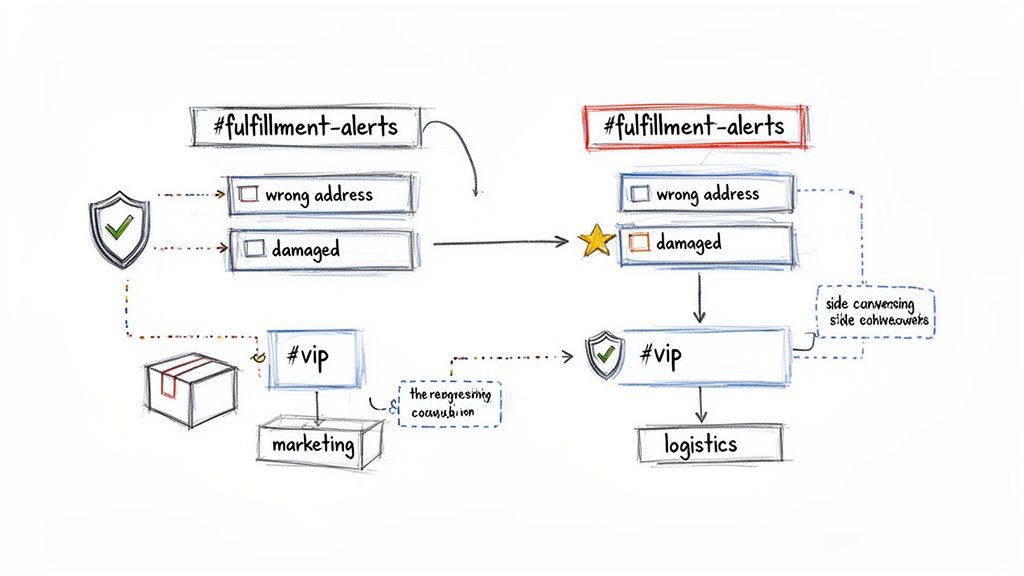
Integrating Slack with Zendesk opens up more than just alerting—it lets you craft proactive support flows that directly tackle common e-commerce headaches. Once you’ve linked the two, you’ll find yourself moving past generic notifications to build automations tuned for your Shopify store’s unique challenges.
Think of it as turning your support desk into an operational nerve center. Tickets become triggers, guiding your team to act fast and with confidence. Here’s how you can get started right away.
Build An Urgent Order Triage Workflow
Fulfillment hiccups—like wrong shipping addresses or damaged parcels—need lightning-speed attention. You don’t want those issues languishing in a general support queue. Instead, set up a system that instantly flags critical orders for the right folks.
• Create a dedicated Slack channel called #fulfillment-alerts, inviting support leads, warehouse staff, and the logistics team.
• In Zendesk, define triggers that scan incoming tickets for keywords such as wrong address, damaged, missing item, or return.
• Configure the trigger to push a custom notification into #fulfillment-alerts the moment it fires.
With this in place, any urgent shipping problem skips the wait—and lands on the desk of someone who can resolve it immediately. That quick turnaround often makes the difference between a delighted customer and a negative public review.
Create A High-Value Customer Alert System
Your top spenders deserve VIP treatment. By flagging tickets from high-value clients, you ensure senior agents can swoop in the second a VIP reaches out. Loyalty and lifetime value get a clear boost this way.
First, tag your VIPs in Zendesk. You can pull in order-history tags from Shopify or build a specific customer list. Once high spenders carry a “VIP” label, the workflow is simple:
• Spin up a private Slack channel like #vip-support for senior staff and managers.
• Build a Zendesk trigger that fires when a ticket comes from a user tagged VIP.
• Have that trigger post a detailed alert into #vip-support.
Key Takeaway: Proactively flagging VIP tickets elevates your support from good to exceptional. It shows your best customers they’re more than a number—they’re a priority.
Master Collaboration With Side Conversations
Sometimes a ticket needs input beyond support—maybe a promo-code question for marketing or a refund sign-off from finance. Adding everyone into the main Zendesk comment thread can get messy fast.
Slack’s side conversations keep the official ticket clean while internal collaboration happens in real time. An agent can start a thread on the Slack alert, @mention a teammate, ask a quick question, and get a response without cluttering the Zendesk record. All internal chatter stays organized and linked to the original ticket alert.
Quantifying The Impact
The numbers speak for themselves. Imagine a store pulling in $5 million in annual revenue. Trimming your churn rate from 10% to 7% can net you an extra $150,000 each year—simply by automating the right workflows and embedding support into your team’s daily Slack routine.
| Annual Revenue | Churn Before | Churn After | Retained Revenue |
|---|---|---|---|
| $5M | 10% | 7% | $150,000 |
To understand the principles behind building these kinds of automations, check out What Is Workflow Automation.
These examples are only the beginning. As you explore more integration points between Slack and Zendesk, you’ll uncover fresh ways to speed up support and keep customers smiling. For additional tips and deeper dives, explore this guide on how to automate customer service.
Fine-Tuning Your Setup: Advanced Tips from the Trenches
Once you’ve got the basic Slack and Zendesk connection up and running, it's time to start making it really work for you. A standard setup is fine, but a well-tuned integration can transform your support from reactive to proactive, cutting down on the noise and helping your team get ahead.
This is where you move beyond simple notifications. The goal is to build an intelligent system that feels like a natural extension of your team—one that actually reduces agent workload and helps you scale your support as your brand grows.
Lock Down Customer Data with Smart Channel Permissions
First things first: customer data. It's non-negotiable. You can't have sensitive information like order details or addresses popping up in public Slack channels. The easiest and most effective way to prevent this is by using private Slack channels for any workflow that handles customer info.
Think about segmenting your support functions and creating dedicated, private channels for each. Then, you only invite the specific team members who absolutely need to be there. This keeps private data on a need-to-know basis.
Here’s how we’ve seen successful e-commerce teams structure it:
-
#support-billing: For anything related to payments, refunds, or credit card questions. Keep this locked down to just your finance team and senior support agents. -
#fulfillment-escalations: When an order goes sideways, it often involves shipping addresses and phone numbers. This channel should be restricted to warehouse leads and logistics staff. -
#vip-customer-alerts: High-value customers get a dedicated, private space. This keeps their order history and personal info confidential among senior support staff who can give them the white-glove treatment.
This approach isn't just about security; it's about building trust. It shows your customers you're serious about protecting their data while still working efficiently behind the scenes.
Filter Your Notifications to Fight Alert Fatigue
If every little ticket update pings a channel, your team will start ignoring the notifications entirely. It’s just human nature. A constant stream of alerts is just as bad as no alerts at all. The real value comes from curating what gets pushed to Slack.
You need to get granular with your Zendesk triggers. Instead of a blanket rule for every new ticket, think about the scenarios that actually demand immediate attention.
Pro Tip: We set up a "High CSAT Risk" alert for one of our Shopify clients. It's a trigger that pings a private
#support-leadschannel whenever a ticket from a customer with a past negative rating gets reopened. This gives managers a heads-up to jump in and turn a potentially bad experience around.
This kind of strategic filtering makes every notification meaningful. When an alert does come through, the team knows it’s important. In the world of DTC support, this focus is everything. We’ve seen teams slash their response times by a whopping 60% and boost customer satisfaction by 40% just by getting this right. You can read more about how teams are automating workflows right inside Slack on UsePylon.com.
Deflect Common Questions and Standardize Your Responses
The best ticket is the one that’s never created. To really level up your efficiency, you need to deflect common questions and make sure your team's responses are consistent and fast. This is where Zendesk's Answer Bot and macros become your secret weapons, and you can fire them off right from Slack.
Bring in the Answer Bot You can set up Answer Bot to suggest help center articles directly within a Slack channel. When a support agent spots a familiar question, they can summon the bot to drop a link to the right article. This often gives the customer an instant answer and prevents a new ticket from ever hitting the queue.
Use Macros Directly from Slack Macros are your best friend for consistency. They're just pre-canned responses and actions you can apply to a ticket. By integrating them with Slack, an agent can run a macro from right inside a thread. Imagine sending a standardized "Your order has shipped!" email, changing the ticket status, and adding a "follow-up" tag—all with a single click in Slack. It’s a massive time-saver and keeps your brand voice on point.
Got Questions? We’ve Got Answers.
As your team starts using the Slack and Zendesk integration, you're bound to run into some practical questions. That's perfectly normal. Getting the right answers quickly is what separates a smooth workflow from a frustrating roadblock. Let's tackle some of the most common questions we hear from e-commerce teams just like yours.
Think of this as your field guide to the real-world challenges that pop up—from handling multiple stores to keeping customer data safe.
Can I Connect Multiple Zendesk Instances to One Slack Workspace?
Yes, you can, and for businesses running multiple brands, this is a huge win. The native Zendesk app for Slack is built for this. You can authorize each of your Zendesk instances separately, all feeding into the same Slack workspace.
The secret to making this work without creating a mess is disciplined channel management. You’ll need to map the notifications from each Zendesk account to its own dedicated, private Slack channel.
For example, you could create:
-
#support-brand-afor tickets from your first Zendesk. -
#support-brand-bfor tickets from your second.
This setup keeps conversations and alerts neatly separated. It prevents cross-talk and ensures your agents are always focused on the right ticket for the right brand. It’s a clean, simple way to scale.
How Do I Handle Sensitive Customer Information?
Protecting customer data is priority number one. The integration gives you a few smart ways to lock things down. The absolute best practice is to send any notification containing personally identifiable information (PII) to a private Slack channel. From there, you just need to be strict about who you invite to that channel—only essential support staff.
But you can go a step further and fine-tune what information even leaves Zendesk in the first place. Dive into your notification templates and decide exactly what data to send to Slack.
For example, instead of pushing the full ticket description, you might only send the Ticket ID, Subject Line, and Requester Name. This gives your team a heads-up while requiring them to click back into Zendesk to see sensitive details like shipping addresses or order history.
This balanced approach gives you the instant awareness of Slack without leaving sensitive data exposed.
What Are the Most Common Setup Problems?
Even a straightforward setup can hit a snag. Most of the time, the issues are minor and easy to fix.
The most common culprit is a permissions error. This almost always happens when the person setting up the integration isn't a full admin on both platforms. Before you even start, confirm you have full admin rights in both Zendesk and Slack. It'll save you a headache.
Another frequent hiccup is when notifications just don't show up in Slack. If that happens, jump back into your Zendesk Triggers. Double-check that your conditions are set up correctly and that the final action points to the exact Slack channel you want. A small typo here can stop everything.
And what if your slash commands, like /zendesk create, suddenly stop working? The quickest fix is often the easiest: just reinstall the Zendesk app in Slack. This forces a refresh of the connection and tokens, and nine times out of ten, it solves the problem instantly.
Does the Integration Sync Both Ways?
It sure does, and this is where the magic really happens. This isn't just a one-way alert system. When something happens in Zendesk—a new public reply or an internal note is added—it shows up as a threaded reply right under the original Slack alert.
Better yet, your team can take action from that very same Slack thread. They can add internal notes that post directly back to the Zendesk ticket without ever leaving the conversation. This two-way street keeps both platforms perfectly in sync and makes sure no context gets lost in translation between apps.
Ready to stop juggling tabs and start solving tickets faster? MAILO AI integrates seamlessly with your tools to automate email support for your Shopify store, freeing up your team to focus on what matters most. Start your free trial and see the difference.