

It might seem like a tiny detail, but that little "Powered by Shopify" text in your store’s footer can have a surprisingly big impact on how customers see your brand. Getting rid of it is a quick win that makes your shop look more polished and professional. It tells visitors you’re a serious, independent business, not just another store using a standard template.
This simple tweak is all about taking full ownership of your online presence.
Why Hiding "Powered By Shopify" Matters For Your Brand
Think of it this way: that small line of text is free advertising for Shopify, not your business. For any brand, especially direct-to-consumer (DTC) companies trying to carve out a unique identity, removing it should be a top priority. It's about controlling your brand's story and making sure every single element on your site works for you.
A clean footer, free from outside branding, immediately signals professionalism and helps build trust. Experienced online shoppers can spot that default Shopify credit from a mile away, and it can subconsciously make your store feel new, small, or less established. When you remove it, you put your site on the same visual level as a big-name retailer with a custom-built platform, which makes for a much smoother customer journey.
Let's break down the main reasons this is a smart move.
| Benefit | Impact on Your Business |
|---|---|
| Increased Professionalism | Creates a polished first impression and shows attention to detail, which builds customer trust. |
| Stronger Brand Identity | Ensures your website is 100% your brand, without diluting the message with third-party logos. |
| Improved Credibility | Makes your store appear more established and independent, boosting your authority in your niche. |
| Enhanced Customer Trust | A fully branded experience feels more secure and legitimate to potential buyers. |
Ultimately, removing the footer text is a strategic decision that strengthens your brand from the ground up.
Cultivate a Professional Image
In e-commerce, you only get one chance to make a first impression. A custom footer without any third-party links shows a level of polish that shoppers notice. It sends a clear message: you’ve invested time and effort into creating a unique, high-quality storefront. This subtle change can genuinely affect how potential customers perceive your credibility and authority.
Key Takeaway: Hiding the "Powered by Shopify" credit isn't about being sneaky. It's about brand curation. You're simply choosing to put your own brand front and center instead of advertising the platform you happen to use.
Strengthen Your Brand Identity
Every single piece of your website—from the logo to the footer—should tell your brand's story. Leaving the default text in place just muddies the waters. Removing it is a clear declaration that you own the entire customer experience. This is especially vital for stores trying to build a loyal community and long-term brand equity. This focus on detail should go beyond just visuals; it’s a core part of the customer journey. You can dive deeper into how to improve the ecommerce customer experience with our detailed guide.
This strategy is even more critical when you consider the sheer number of stores on the platform. Shopify now powers over 6.5 million active stores around the world. To learn how to remove 'Powered by Shopify' branding effectively, check out this helpful resource. That huge number highlights why so many successful merchants make this change—it helps them escape the "template store" look that can sometimes make shoppers hesitant. For more fascinating Shopify statistics, the latest studies from thunderbit.com are a great read.
The Easiest Fix Using Your Language Settings
If the thought of digging into your theme’s code gives you a headache, don't worry. There's a much simpler, code-free way to get this done that works on almost every single Shopify theme out there, including popular free ones like Dawn. We're going to use the built-in language editor, which is typically for translating your store, but it has a handy side benefit.
The best part? This entire process takes less than two minutes and is completely reversible. It’s the perfect first method to try if you want to hide powered by shopify branding without any technical risk.
Navigating to Your Theme Languages
First things first, you'll need to get to the right spot in your Shopify admin dashboard. Knowing exactly where to click will save you from getting lost in the settings.
Here’s how you get there:
- From your main Shopify admin, click on Online Store, then Themes.
- Look for your current, published theme in the list.
- Next to the theme name, click the button with three dots (it might also say "Actions").
- A dropdown menu will appear. From there, choose Edit default theme content.
This action will land you in the theme's language editor. This area controls every bit of default text a customer sees—from the "Add to Cart" button to, you guessed it, the footer credit. It's a surprisingly powerful tool for making quick text changes across your whole site.
Pro Tip: One of the biggest advantages of this method is that it’s "theme-update safe." When you edit the code directly, those changes can easily be wiped out the next time you update your theme. Language editor changes, on the other hand, are often preserved, saving you a future headache.
Finding and Replacing the Text
Once you're inside the language editor, you’re just a quick search away from being done. You should see a search or filter bar at the top of the page, which is exactly what we need.
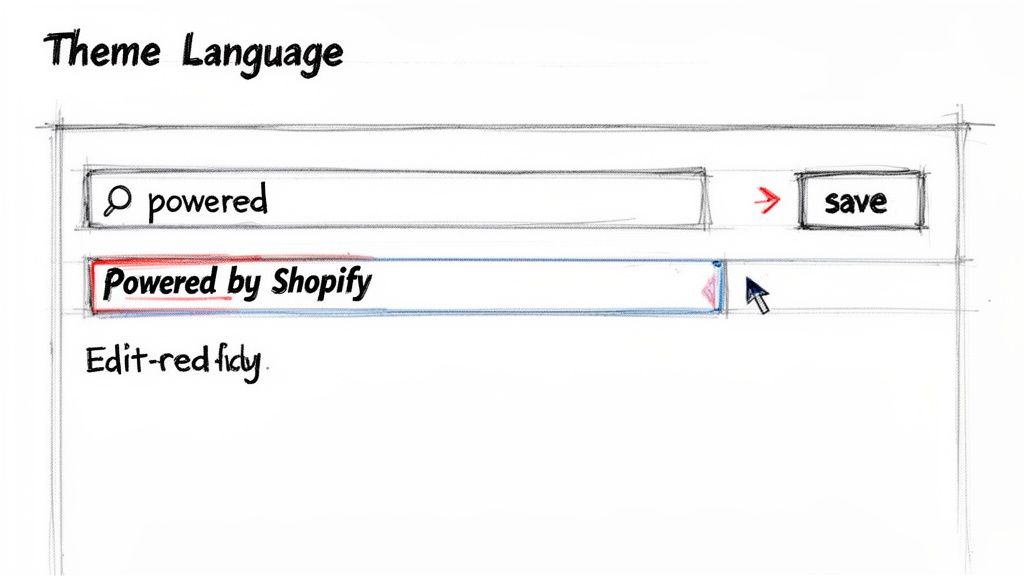
In that filter box, just type the word powered. This will instantly narrow down all the text on your site to the one field we care about: "Powered by Shopify."
Now for the trick. Don't just delete the text. Instead, replace the entire phrase with a single space. Just hit your spacebar once in that text box.
Why a single space? If you leave the box completely empty, some themes are coded to automatically revert to the default text. By putting a single, invisible space there, you’re giving the theme a value to display—it just happens to be blank.
Click "Save," and that’s it. Head back to your storefront, and the "Powered by Shopify" text will be gone, leaving your footer looking clean and fully branded.
Finding the Toggle in Your Theme Editor
Before you start wrestling with code or digging into language settings, let's try the easiest fix first. Many modern Shopify themes—both premium and the newer free ones—have a simple toggle built right into the theme editor for this exact purpose.
If your theme has this feature, getting rid of the "Powered by Shopify" text is literally a one-click job. It's the cleanest and fastest method by far, so it's always worth checking here before moving on to more technical solutions.
Locating Your Footer Settings
First, you'll want to head into your theme customizer. From your main Shopify admin dashboard, go to Online Store > Themes. Find the theme you're currently using and click the big Customize button.
This will launch the visual editor, where you can see a live preview of your store. Now, you just need to find the settings for your footer. You can usually get there in two ways:
- Look for a section labeled Footer in the left-hand sidebar menu.
- Or, just scroll down on the live preview of your site and click directly on the footer section itself.
Either action should pop open the footer's specific settings panel on the left. This is where you'll likely find what you're looking for.
Expert Tip: Don't see a "Footer" section? Don't panic. Some theme developers tuck these kinds of options away in a more general area, like a "Theme Settings" or "General" tab. It’s worth taking a quick peek in those sections before giving up.
Searching for the Right Checkbox
Once you're in the footer settings, scan the panel for anything related to theme credits or Shopify branding. The exact wording can vary quite a bit from one theme to another, so you might have to play detective for a moment.
Keep an eye out for a checkbox or toggle switch with labels like:
- Show "Powered by Shopify"
- Enable theme credits
- Show theme information
- Display Shopify branding
For instance, you might find a simple checkbox that says, "Show theme and Shopify credits in the footer." If you see it, just uncheck that box, hit the "Save" button in the top right, and you're done. The text will vanish from your live site instantly.
This quick check is always my first recommendation. As Shopify has grown to power 29% of e-commerce sites worldwide, store owners are constantly looking for ways to stand out. Removing a default footer link is a small but meaningful step toward creating a more polished and professional brand image. You can dig into more fascinating Shopify statistics on Latori's blog to see just how massive the platform has become.
If you’ve clicked around your theme editor and still can't find a toggle, no problem. It simply means your theme doesn't have this shortcut built in. We’ll just need to try one of the other methods.
If the quick fixes don't cut it, or if you just want that "Powered by Shopify" text gone for good, it's time to roll up your sleeves and jump into your theme's code. This is the most surefire way to remove the text permanently, as you're cutting it out at the source.
Don't worry, this sounds more intimidating than it actually is. You don't need to be a developer, but you do need to be careful. Before you touch a single line of code, the absolute first thing you must do is create a backup of your theme. Seriously, don't skip this. Just head to Online Store > Themes, find your current theme, click the three-dot menu, and hit Duplicate. This creates a perfect copy you can restore if anything goes sideways.
Finding the Right Code File
Okay, backup saved? Great. Now, let's find the file we need. Go back to your active theme, click the three-dot menu again, and this time choose Edit code. Welcome to the Shopify code editor.
On the left, you'll see a directory of all your theme's files. The one we're looking for controls your footer. In the vast majority of themes, this file is called footer.liquid and lives inside the Sections folder.
Some newer themes or custom-built ones might have a slightly different name, like main-footer.liquid or something similar. If you don't see footer.liquid, just poke around the Sections folder for any file with "footer" in its name. It's usually pretty obvious.
A Quick Tip: Getting your store's details right goes way beyond the footer. For more practical advice on optimizing your site, you might find our other tutorials and implementation guides useful.
Once you click to open the right file, you'll see a mix of HTML and Liquid code. It might look a bit complex, but we only need to find one tiny snippet.
Locating and Removing the Code Snippet
With the footer.liquid file open, the hunt begins. The easiest way to find the target is to use your computer's search function (Ctrl+F on Windows or Cmd+F on Mac) and just type in powered.
This should instantly jump you to the line of code that generates the "Powered by Shopify" link. In most cases, it looks exactly like this:
{{ powered_by_link }}
Sometimes it might be wrapped in other code, like a paragraph tag (<p>). Your job is to simply delete that entire line containing {{ powered_by_link }}. Once it's gone, hit the Save button in the top right corner. That's it!
This decision tree gives a great visual overview of the different paths you can take to hide the Shopify credit.
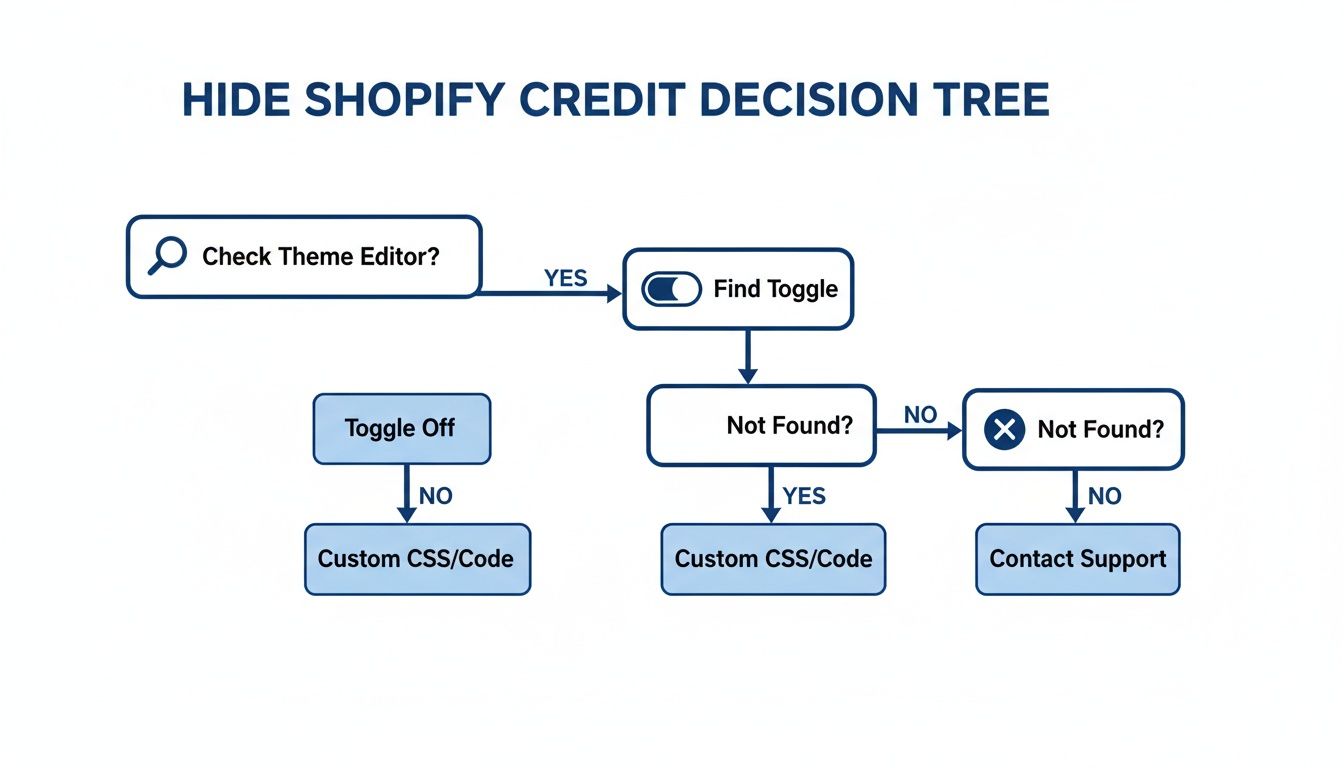
As the chart illustrates, the theme editor is your simplest option, but having this code-based method in your back pocket is essential for a reliable fix.
Comparison of Methods to Hide 'Powered by Shopify'
Choosing the right approach depends on your comfort level with technology and the specifics of your theme. Here’s a quick breakdown to help you decide which path is best for you.
| Method | Difficulty | Best For | Impact on Theme Updates |
|---|---|---|---|
| Theme Customizer | Easy | Beginners; themes with a built-in option. | None. The setting usually sticks. |
| Edit Default Theme Content | Easy | Hiding the text on multilingual stores or when the customizer fails. | Low. Sometimes needs to be redone after a major update. |
| Edit Theme Code | Intermediate | A permanent, guaranteed solution for any theme. | Medium. Custom code edits may need to be reapplied after updating your theme. |
Ultimately, each method gets the job done. The code edit is the most powerful, but always start with the simpler options first to save yourself some time and effort.
Optimizing Your Footer After Removing Shopify Branding
Once you hide the "Powered by Shopify" message, you’re left with a clean slate. But a blank space isn't the goal—an optimized one is. That newly available real estate in your footer is surprisingly valuable, and leaving it empty can look like an oversight.
Instead, you can transform it into a powerful asset that builds trust, improves navigation, and reinforces your brand identity. Simply deleting the text is only half the job. Now, it's time to be intentional with that space to make it work for you.
What to Add to Your New Footer Space
Think of your footer as the final handshake with your customer on every single page. It’s often the first place people look for essential information when they need reassurance or have a question.
Here are a few high-impact additions to fill that void:
-
A Professional Copyright Notice: This is a small but important detail. Adding a dynamic copyright notice like
© 2024 Your Brand Name. All Rights Reservedmakes your site look current and buttoned-up. Most themes have a simple way to make the year update automatically. - Essential Policy Links: Don't make customers hunt for your policies. Links to your Privacy Policy, Terms of Service, Shipping Policy, and Return Policy are non-negotiable for building trust.
- Trust Badges: Displaying icons for secure payment methods like Visa, Mastercard, or PayPal addresses security concerns head-on. If you have security seals from services like Norton or McAfee, the footer is the perfect place for them.
A well-structured footer isn't just for show; it's a critical tool for user experience and trust-building. It’s the last opportunity on the page to reassure a customer that they're dealing with a legitimate, professional business.
Verifying Your Changes Across Devices
After you’ve tweaked your footer, the final step is a crucial quality check. What looks perfect on your large desktop monitor might look jumbled or misaligned on a mobile phone, where a huge chunk of your customers are shopping.
Take a minute to pull up your store on both a desktop computer and your smartphone. Are there any weird spacing issues? Does the text overlap? You’re aiming for a clean, intentional look on every screen size. A polished mobile footer is absolutely essential for any modern ecommerce brand.
Handling Theme Updates Gracefully
One last point to keep in mind is how theme updates can affect your work. If you removed the Shopify credit by editing the theme code directly, updating your theme will likely undo your changes, bringing the "Powered by Shopify" text right back. It happens all the time.
To avoid this headache, I always recommend keeping a simple document listing the custom code changes you’ve made. That way, you can quickly re-apply them after an update without having to figure it all out again. Many brands also use this as an opportunity to integrate other small enhancements. You can find more ideas for this by exploring guides on ecommerce marketing automation that can complement your polished storefront.
Got Questions About Removing Shopify Branding?
It's totally normal to have a few questions after tweaking your store's footer. Let's walk through some of the most common things people ask when they decide to hide the "Powered by Shopify" text, so you can be completely confident in your new, cleaner look.
Is It Really Okay to Hide 'Powered by Shopify'?
Absolutely, one hundred percent. Shopify gives you the keys to your store, and that includes full control over how it looks. Removing their branding from your footer isn't just some sneaky workaround; it's a standard practice for countless successful stores.
Think of it like this: Shopify built the foundation, but you're the architect designing the house. It's your brand, your storefront. Making every element on the page feel like yours is not just allowed—it's smart business. You’re not breaking any rules or violating their terms of service with this simple change.
Will Hiding This Text Hurt My SEO?
This is a big one for a lot of store owners, but you can relax. The answer is a clear no. That "Powered by Shopify" link has virtually zero impact on your store's search engine optimization. It doesn't carry any special SEO "juice" that you'll lose by removing it.
If anything, there's a small potential upside. Getting rid of that external link frees up prime real estate in your footer. You can use that space to link to your own important pages—think returns, shipping policies, or your contact page. This helps strengthen your site’s internal linking and makes it easier for customers to navigate, both of which are things search engines actually care about.
A clean, professional footer builds trust. When a visitor lands on a site that feels polished and legitimate, they're more likely to stick around and make a purchase. Those positive user signals are what really move the needle for SEO.
What if I Can't Find the Code Snippet?
So you're digging around in the code editor, but {{ powered_by_link }} is nowhere to be found in footer.liquid. Don't panic! This happens. Some theme developers tuck it away in a different file, like theme.liquid or a more specific section file like main-footer.liquid.
Before you go on a code scavenger hunt, though, circle back and try the language editor method again. It's often the easiest fix because it finds the text string itself, no matter which file it’s hiding in. If that still doesn't do the trick, your most efficient next step is to reach out to your theme's support team for help.
Will a Theme Update Erase My Changes?
Now, this is where the how really matters. The answer depends entirely on the method you chose.
- Used the Language Editor? You're likely in the clear. These text changes are typically stored as settings, separate from the theme's core code. They usually stick around even after an update.
- Edited the Code Directly? Yep, your changes will almost certainly be wiped out. A theme update essentially replaces the old files with new ones, and your custom code edits will go right along with them.
This is exactly why I always recommend keeping a simple log of any code changes you make. A quick note in a document turns a future headache into a simple, two-minute fix after your next update.
Ready to turn your customer support from a cost center into a growth engine? MAILO AI automates your email support with brand-voiced, AI-powered replies, freeing up your team to focus on what matters most. Start your free trial today!